The Problem Nobody Talks About: The Two-Computer Desk Trap
Millions of remote workers sit down every morning to the same quiet absurdity: two computers, one monitor, one keyboard, one mouse, and no clean way to move between them. The work laptop — almost always employer-issued, often a Mac — sits next to a personal machine, and the daily ritual of switching between them burns time and patience in roughly equal measure.
The hardware workarounds people reach for are well-known and consistently disappointing. Unplugging and re-plugging cables at the back of a monitor is the lowest-tech option and the most reliable, which says everything about the state of the alternatives. USB-C switches ship with optimistic marketing copy and deliver inconsistent results — dropped connections, peripherals that fail to hand off cleanly, monitors that take ten seconds to negotiate a signal. KVM dongles occupy an awkward middle ground: expensive enough to feel like a real solution, unreliable enough to feel like a compromise.
This is not an edge-case problem affecting a small group of power users. The Mac-plus-Linux combination — a work-issued MacBook sharing a desk with a personal Linux desktop — maps almost exactly onto the employer-issued-versus-personally-owned split that defines a huge slice of home office setups worldwide. Swap Linux for a Windows gaming PC and the setup is practically universal. One person, one desk, two machines, one set of peripherals, and no hardware product that handles the transition without friction.
What makes this gap stranger is how long it has persisted. The shift to remote and hybrid work accelerated after 2020, putting tens of millions of people in exactly this configuration almost overnight. Monitor manufacturers added KVM switching features to select high-end displays, but those implementations vary widely in quality and require both machines to connect via specific ports. The hardware industry treated the problem as a premium niche rather than a mainstream one, and most people ended up buying a cheap USB switch from a third-party brand and hoping for the best.
The frustration is real, specific, and shared. The fact that a blogger’s post about solving it with keyboard shortcuts and software routing resonates immediately with readers is not a coincidence — it is a signal that the itch has never properly been scratched.
Why Hardware Alone Has Failed to Solve This
KVM switches have existed since the 1980s, built for a world of PS/2 ports, VGA cables, and tower desktops that never moved. The core design logic has barely changed since. Today’s two-computer user runs a MacBook alongside a Linux desktop, both outputting over Thunderbolt 4 or USB-C, both expecting 4K at 144Hz or better. Legacy KVM hardware simply was not engineered for that reality. Most affordable KVM switches top out at 1080p or 1440p, choke on high-refresh signals, and introduce input lag that makes them useless for anyone doing precision work.
USB-C hubs and switches entered the market promising a cleaner solution. They deliver the opposite. A hub that works flawlessly between two MacBooks frequently breaks when one machine runs Linux, because USB-C power delivery negotiation and DisplayPort alternate mode behave differently across operating systems and chipsets. Users report dropped connections, monitors failing to wake, and keyboards that stop registering — all from the same hardware that worked fine the day before. The problem compounds when Thunderbolt certification is missing, leaving users guessing whether their $80 switch will even attempt to pass a full-bandwidth signal.
Monitor manufacturers have made a half-effort. Brands like LG, Dell, and BenQ now ship displays with built-in KVM or dual-input switching features. The physical button exists. The problem is the experience around it. Switching inputs typically means pressing an unmarked button on the bezel, waiting three to five seconds for the display to detect a new signal, then navigating an on-screen display menu through more button presses to redirect the USB hub to the correct machine. For someone who switches computers dozens of times a day, that sequence becomes a genuine tax on attention and time.
One developer running a Mac laptop and Linux desktop on a single monitor described the pre-software situation plainly: switching required either unplugging cables at the back of the monitor, using what they called “flaky USB-C switches,” or wrestling with dongles. The hardware industry treated this as an edge case. The remote work explosion made it a daily reality for millions of people, and the product shelves never caught up.
The Software-First Mindset: A Different Way to Frame the Problem
Most people confronting a two-computer desk hit the same wall: they treat it as a hardware problem. That means another purchase — a KVM switch, a USB-C hub, a second monitor — followed by another tangle of cables and another point of failure. The underlying assumption is that the solution must be physical.
The more productive reframe is to treat it as a configuration and automation problem. The computers, the monitor, and the peripherals already contain most of what’s needed. The gap is in how those components are orchestrated, not in what components exist. Adding software logic to coordinate them costs nothing and removes hardware entirely from the critical path.
One developer running a Mac laptop alongside a Linux desktop documented exactly this shift in thinking. The old workflow meant unplugging cables at the back of the monitor, wrestling with unreliable USB-C switches, or routing everything through dongles. None of it was fast, and all of it required physical intervention. The stated goal for the new setup was unambiguous: switching between the two machines without lifting hands off the keyboard. Any hand movement counted as failure.
The catalyst for rethinking the whole arrangement was a monitor upgrade. That moment — replacing one display with another — is typically treated as a straight swap. You unbox the new monitor, connect the same cables, and move on. What it actually represents is a clean architectural break. The existing setup has to come apart anyway, which makes it the lowest-friction point to redesign input routing, connection topology, and switching logic from scratch.
That redesign starts by auditing what the new hardware already supports. Modern monitors increasingly ship with built-in KVM functionality, DDC/CI control interfaces, and multiple input ports that can be switched programmatically. Modern operating systems expose scripting hooks that can trigger those switches automatically. None of this requires new purchases. It requires treating the monitor as a configurable device rather than a passive screen, and writing a small amount of automation to connect the pieces.
The result is a setup that responds to a single keyboard shortcut rather than a hand reaching behind a display. The hardware didn’t change the equation — the decision to stop solving the problem with hardware did.
What a ‘Zero Fiddling’ Setup Actually Requires
A genuinely seamless two-computer setup requires three things to move simultaneously: the display signal, the USB peripherals, and the audio output. Most people solve one of these and accidentally create two new problems. Switch the monitor input manually and the keyboard still talks to the wrong machine. Use a USB hub with a toggle button and the screen stays behind. Each partial fix adds a step, and accumulated steps are exactly what makes the current situation intolerable.
Cross-platform combinations make this dramatically harder. A Windows-to-Windows or Mac-to-Mac switch benefits from a shared software ecosystem where tools like Synergy or Barrier can at least share a mouse and keyboard across machines. Introduce Linux on one side — or worse, pair macOS with Linux as a daily driver combination — and most polished KVM software either breaks entirely or loses features that worked on homogeneous setups. The assumption that both machines run the same operating system is baked silently into the majority of consumer-grade switching solutions.
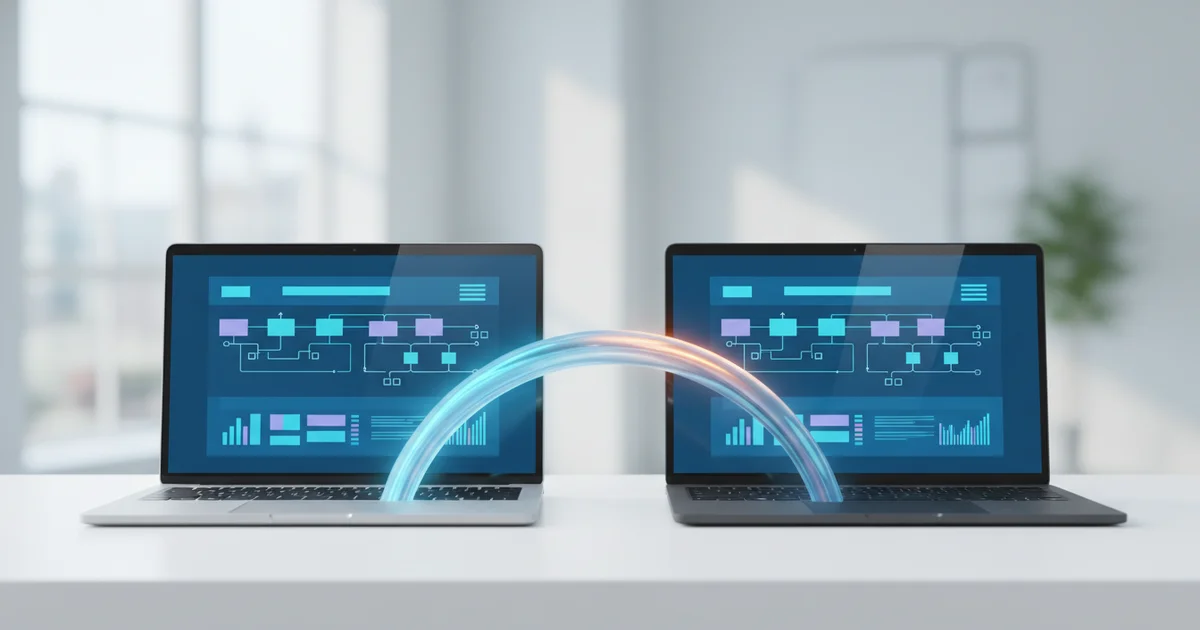
The practical path to zero fiddling combines a monitor that accepts software-addressable input commands with a script or hotkey binding that fires all three switches at once. Monitors that support DDC/CI (Display Data Channel Command Interface) can receive input-selection commands directly from software — no physical button press required. On such a monitor, a single hotkey can trigger a script that switches the monitor input via DDC/CI, redirects the USB hub to the second machine, and moves audio output in the same action. One keystroke, no hands leaving the keyboard.
This is not hypothetical. Users running macOS alongside Linux have documented exactly this workflow: a keyboard shortcut fires a script combining a DDC/CI command for the monitor with a USB device handoff, completing the full switch in under two seconds. The critical constraint is monitor compatibility — a display without DDC/CI support puts the physical input button back in the chain and breaks the automation entirely. That single hardware requirement determines whether the software-first approach works or collapses back into fiddling.
What Most Coverage Is Missing: The Ecosystem Lock-In Angle
Tech media reviews KVM switches as isolated products. A reviewer tests whether the button clicks, whether the USB ports enumerate correctly, whether the display signal survives the handoff. The score goes up, the article publishes, and the actual problem — moving your entire working context across two machines without friction — goes unaddressed.
That framing misses the real issue. Display input, USB peripherals, audio routing, and software state all need to move together. Switching a keyboard and mouse means nothing if your second machine wakes to the wrong audio output, a mismatched display resolution, or a clipboard that has no memory of what you just copied. Hardware reviewers rarely test for any of that.
The Mac-versus-Linux desk is where this gap becomes impossible to ignore. Apple’s hardware-software integration is genuinely impressive inside its own walls — Handoff, Universal Control, and AirPlay exist because Apple controls the full stack. The moment a Linux machine sits beside a MacBook, that integration becomes a walled garden with no gate. Universal Control does not extend to a Debian box. There is no Apple-sanctioned way to share a clipboard between macOS and Arch Linux. Developers running a work MacBook alongside a personal Linux desktop — a combination that is common in engineering households — get no help from Apple and no coherent product from the peripheral industry either.
No major peripheral brand shipped a clean multi-OS, multi-machine desk-switching solution in 2024 or 2025. Logitech’s Options+ software handles multi-device mice and keyboards within its own ecosystem but does not coordinate display switching. Dell, LG, and Samsung all sell monitors with KVM functionality, yet their companion software is Windows-centric and largely irrelevant on Linux. The gap is wide enough that the solutions getting real traction are open-source projects, scripted monitor DDC commands, and blog posts from individual engineers who built their own answer — like the Mac-and-Linux setup that chained a monitor’s built-in KVM to a software hotkey so that switching machines requires no hand movement at all.
The hardware industry has had years to ship this product. It has not. That absence is not an oversight — it reflects a deliberate focus on the Windows-dominated enterprise KVM market, leaving the mixed-OS home desk as an afterthought.
Practical Takeaways for the Two-Computer Home Worker
If you’re shopping for a new monitor in 2025, DDC/CI support is a non-negotiable baseline, not a bonus feature. DDC/CI lets software on your computer send commands directly to the monitor over the display cable, including input-switching commands. Without it, you’re locked into physical button presses or remote controls forever. Confirm DDC/CI support in the spec sheet before you buy — manufacturers bury it, but it’s there if you look.
Once you have a DDC/CI-capable monitor, pair it with a single powered USB hub connected to both machines via a switchable upstream port. Consumer KVM switches in the $50–$150 range have a well-documented reliability problem: they drop keystrokes, fail to register on wake, and introduce input lag. A quality USB hub with manual or software-triggered upstream switching sidesteps most of that. The switching mechanism becomes a script call, not a hardware gamble.
That script investment is where the real payoff lives. Home workers running a Mac and a Linux machine on the same desk — a common pairing for anyone separating work and personal computing — have built setups where a single keyboard shortcut triggers the monitor input change and the USB hub switch simultaneously. The result is a sub-second transition with no hands leaving the keyboard. That’s the standard to aim for, and it’s achievable today with off-the-shelf hardware and a modest amount of automation work.
The broader principle is that good desk setups in 2025 are engineered deliberately, not assembled by plugging things in and hoping. Every cable, hub, and software hook is a decision. An hour spent writing a switching script pays back that time within a week of daily use, and it keeps paying back every day after. The hardware industry has not shipped a clean, affordable, all-in-one solution to the two-computer problem. Software automation has filled that gap. Treat your desk as a system, audit it when you upgrade any component, and the friction disappears.